Project synchronisation
To synchronise the project created on a mobile device with up to 9 other users, a QR code can be generated in the settings under the Project synchronisation point.
To scan the QR code with a different mobile device, the following steps are necessary after installing the JUNG HOME app:
- Click on
Start immediately. - Click on
Import project. - Under
Project synchronisation, click onScan. - Scan the QR code.
The query must then be confirmed on the mobile device where the project synchronisation was started.
After the project synchronisation, a user is added in admin mode and all other users are added in member mode.
In admin mode, the following possibilities are available:
- For example, devices can be added and scenes, areas and automations can be created and edited
- All available devices are displayed and can be operated
- The devices can be updated to the latest version
- It is always possible to change from the admin mode to the member mode
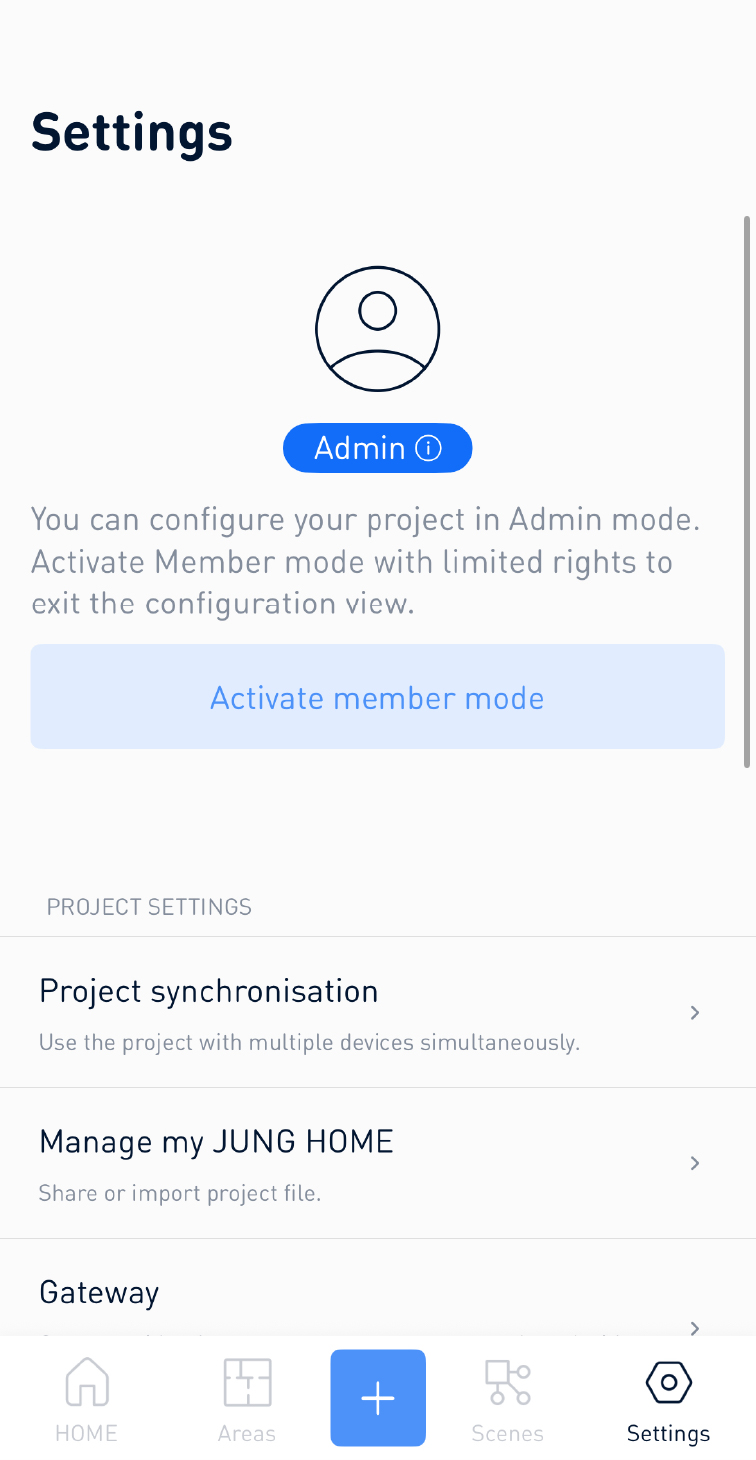
In member mode, the following possibilities are available:
- All accessible devices, such as luminaires, blinds and sockets are displayed and can be operated
- Admin mode can be activated in the settings at any time
There is no display and editing of push-buttons, detectors and binary inputs in member mode.
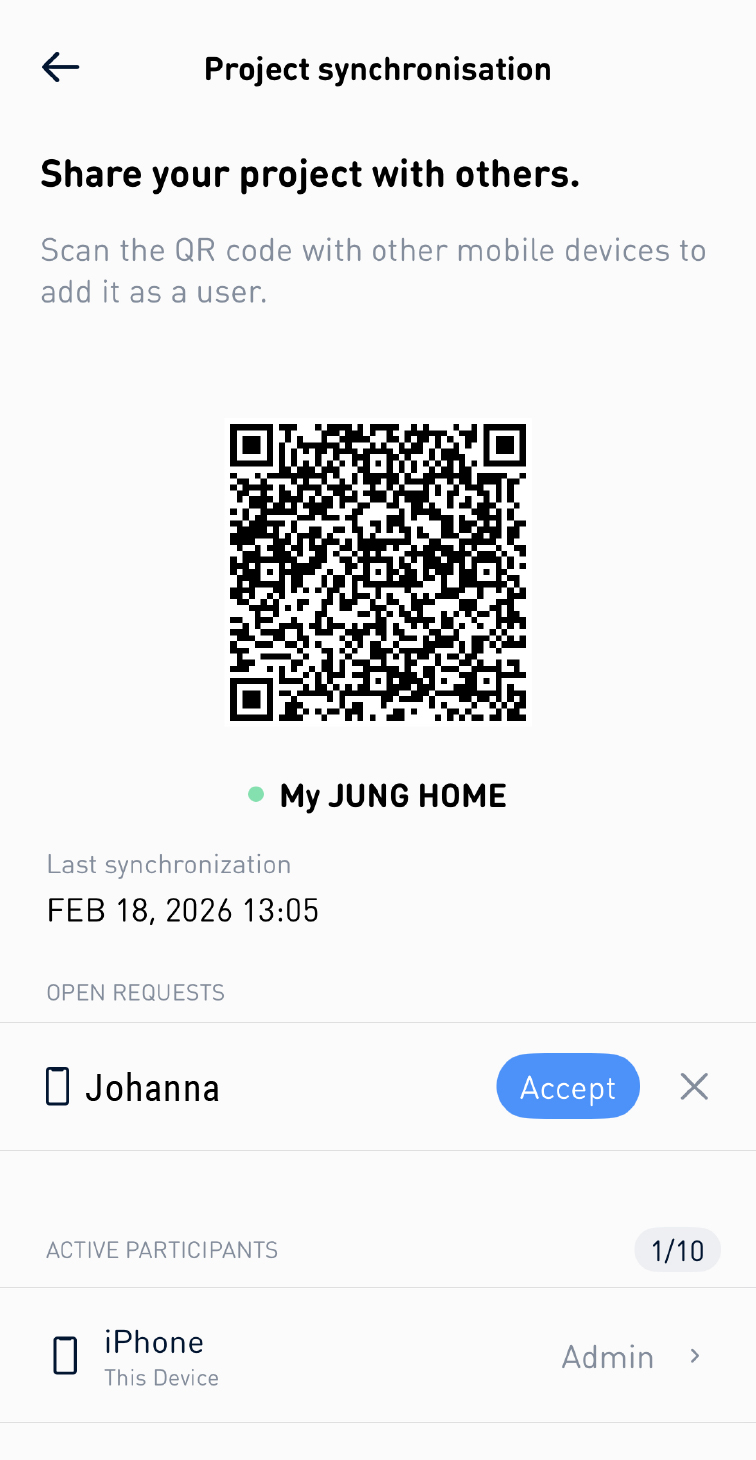
All changes to the project made by the admin, such as renaming, adding JUNG HOME devices or changes in device configurations, are automatically synchronised with the members.
If project synchronisation is active, changes in the project are not possible without an Internet connection. JUNG HOME devices can still be operated via the JUNG HOME app.