Operation and menu structure of the JUNG HOME app
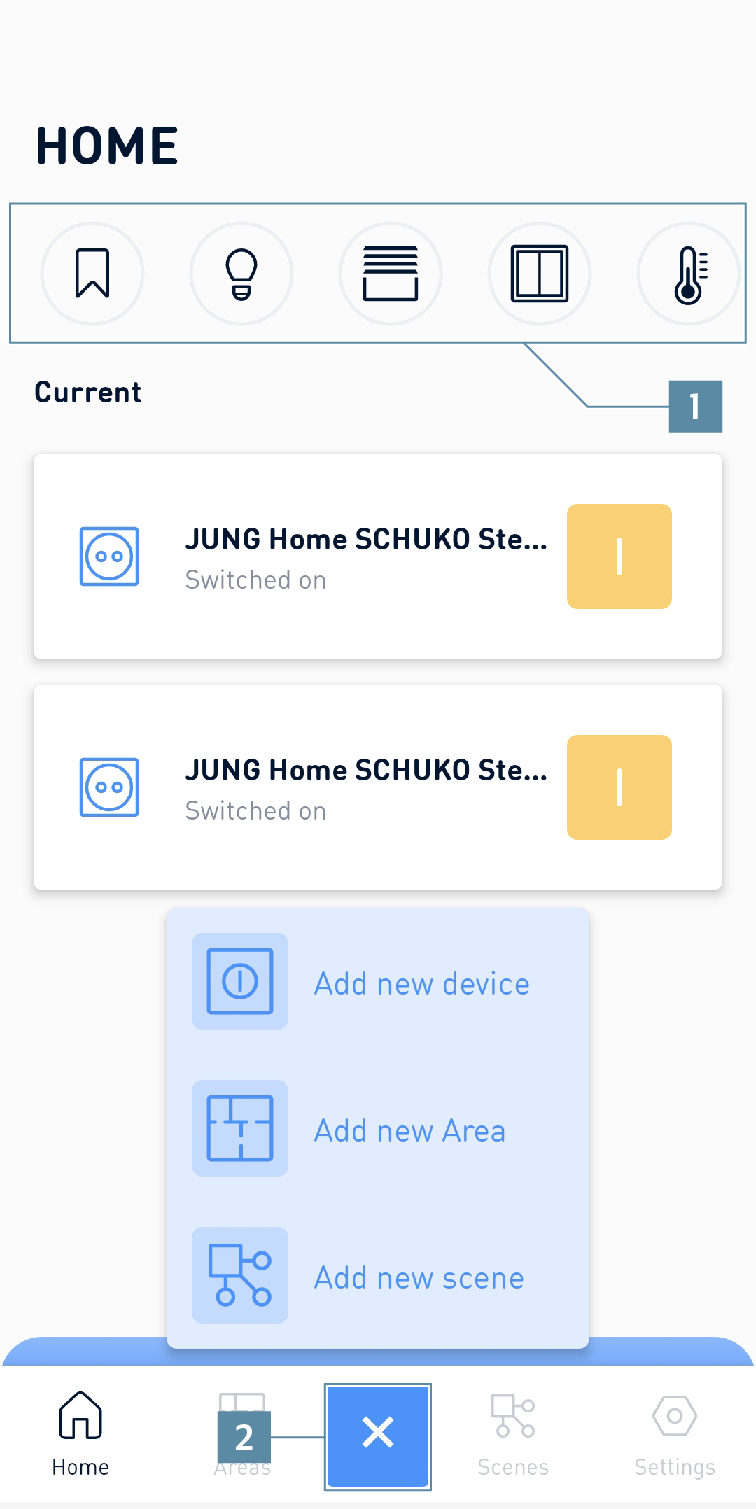
Function bar and plus symbol
1 | Using the function bar on the Home screen, you have access to the favourites and the devices sorted by device type. |
2 | Call the "Add" menu using the plus symbol. |
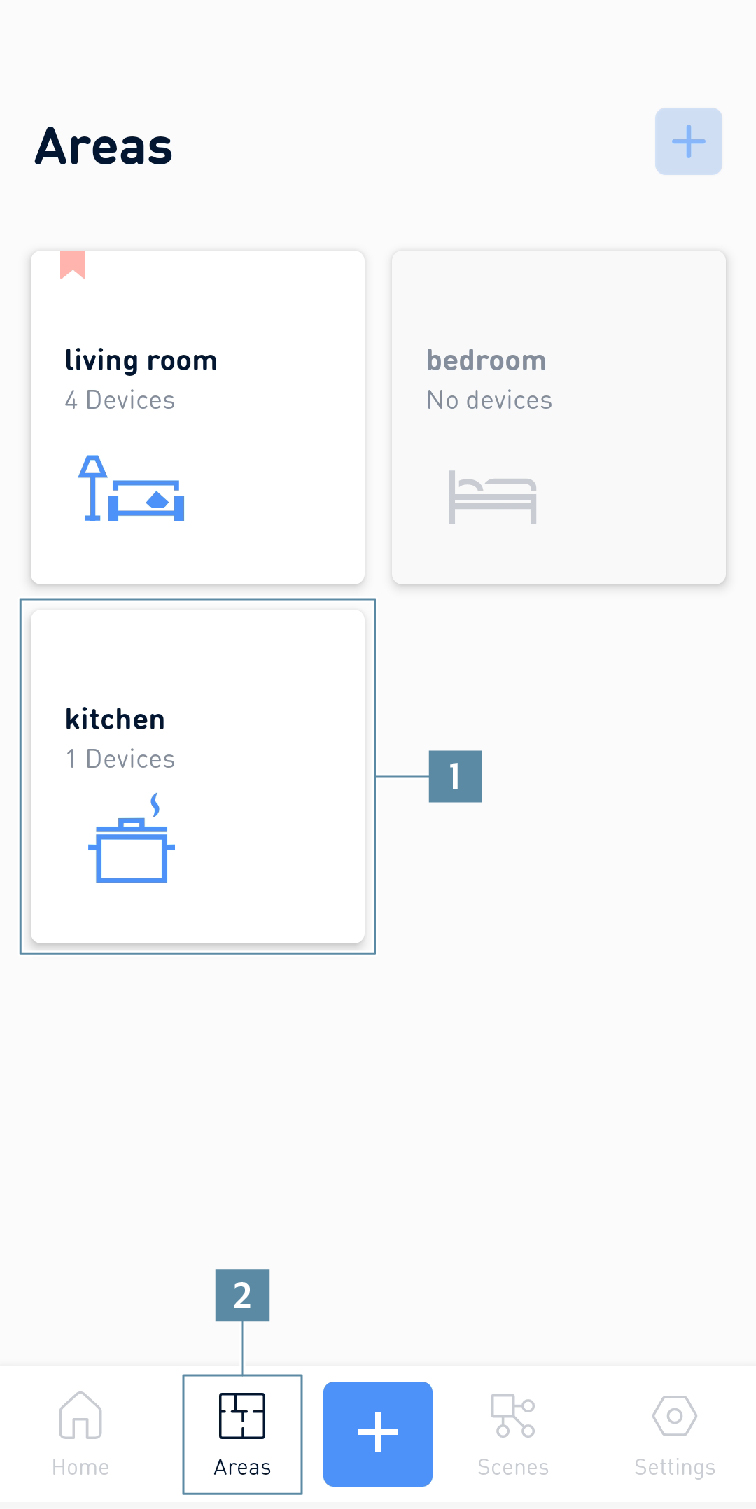
Adding with plus selection
1 | Operate devices in the areas |
2 | Using areas, you can create areas |
Areas are used for grouping individual JUNG HOME devices. They can be created by room and floor. Every area automatically gets central control. Areas can also be used to implement central functions. A device can be added to up to 16 areas.
Example:
- „1. Area“: all blinds (central control of all blinds using the JUNG HOME app and potentially JUNG HOME push-buttons)
- „2. Area“: living room (all lighting, blinds and room thermostat in the living room)
- „3. Area“: kitchen (all lighting, blinds and room thermostat)
- „4. Area“: …
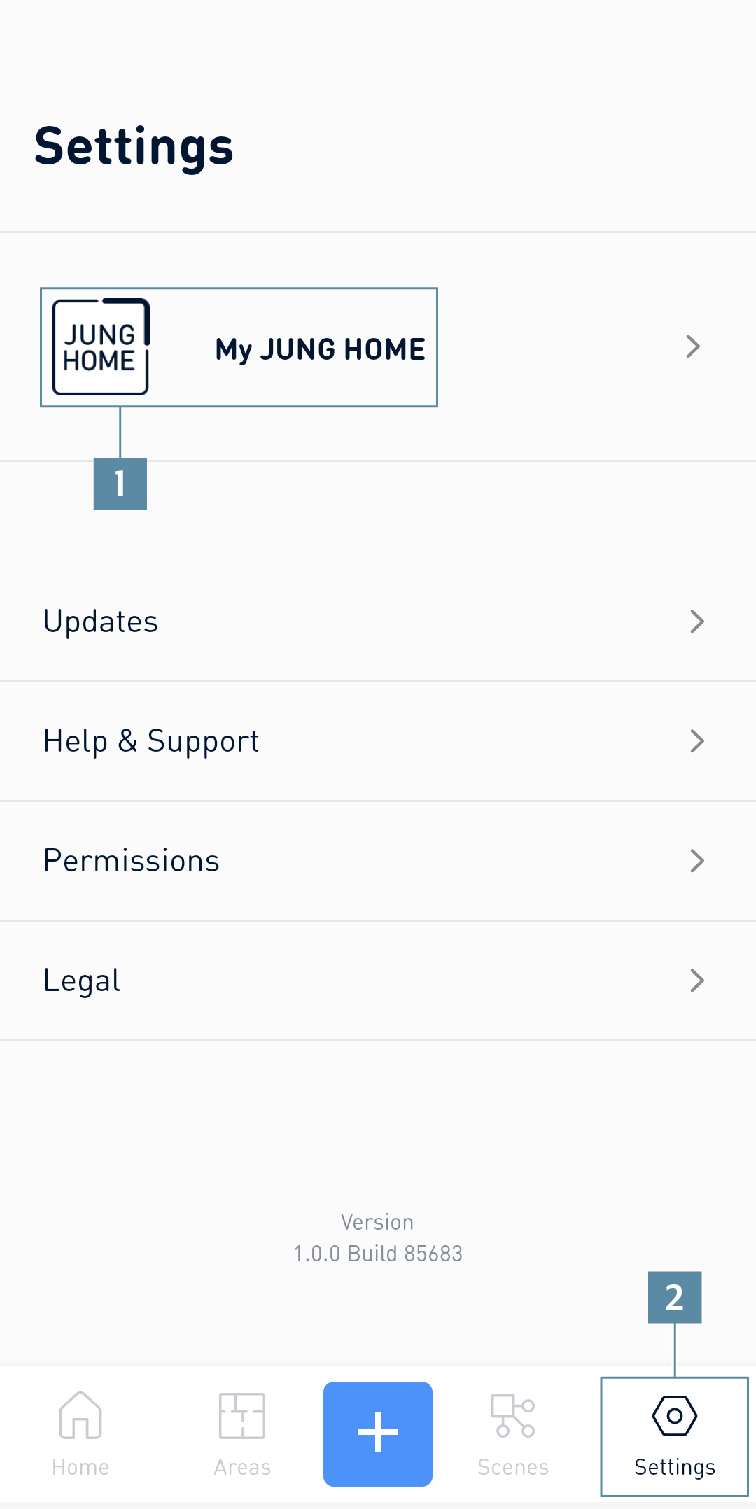
Settings
1 | My JUNG HOME project offers the following possibilities:
|
2 | You can find the following information and setting possibilities in Settings:
|
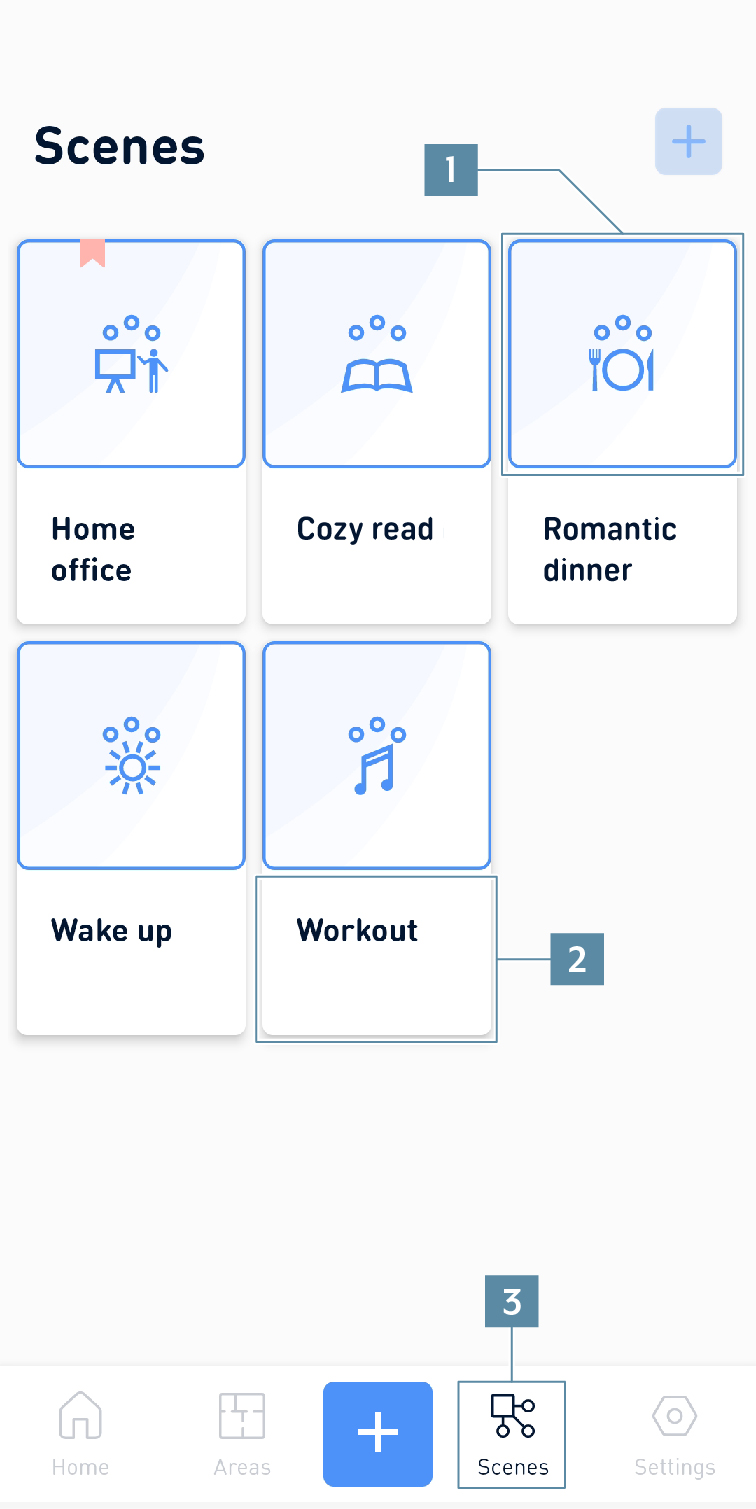
Scenes
1 | You can call the scene (in this case Romantic dinner) here. The switch area briefly turns blue as feedback. |
2 | You can edit the scene here. |
3 | Using Scenes, scenes can be created and triggered. |
Scenes are triggers for configured states. They can be created individually or cross-group. A JUNG HOME device can be added to multiple scenes.
Example:
Goodbye: room thermostats to 18.0 °C, all lighting OFF and all blinds to 75 %.
Meaning of the symbols in the JUNG HOME app
Symbol | Meaning |
|---|---|
| Settings |
| Parameters |
| Back |