Use an NTP server from the Internet
The Windows 10 operating system with a preconfigured time is installed as standard on your JUNG VISU PRO Server. The following describes how to use an NTP server to synchronise system time on Windows 10. The prerequisite for this is an existing Internet connection.
Note
The Network Time Protocol (NTP) is a standard for the synchronisation of clocks in computer systems.
- Login to your JUNG VISU PRO Server and open the
clock.
Click onAdjust date / time1.

- Under
Related settingsthen selectAdditional date, time & regional settings2.
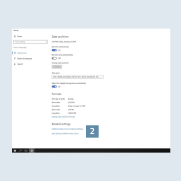
- Then click on
Set the time and date3. A pop-up window opens. There change the current Internet time settings on theInternet timetab.

- Ensure that the check mark for
Synchronise with an Internet time server4 is set. The default time server for JUNG VISU PRO is0.europe.pool.ntp.org.

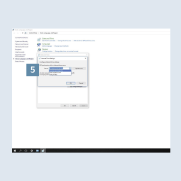
- If you would like to use another NTP server, enter the address in the input field for
Server5.
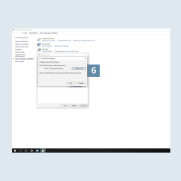
- Click on
Update now6 to synchronise your JUNG VISU PRO Server with the current time of the NTP server.