Remote access using Android
Setting up the MyJUNG remote access for JUNG Visu Pro on your smartphone is carried out with the following steps.
Note
An Android device is shown in this example.
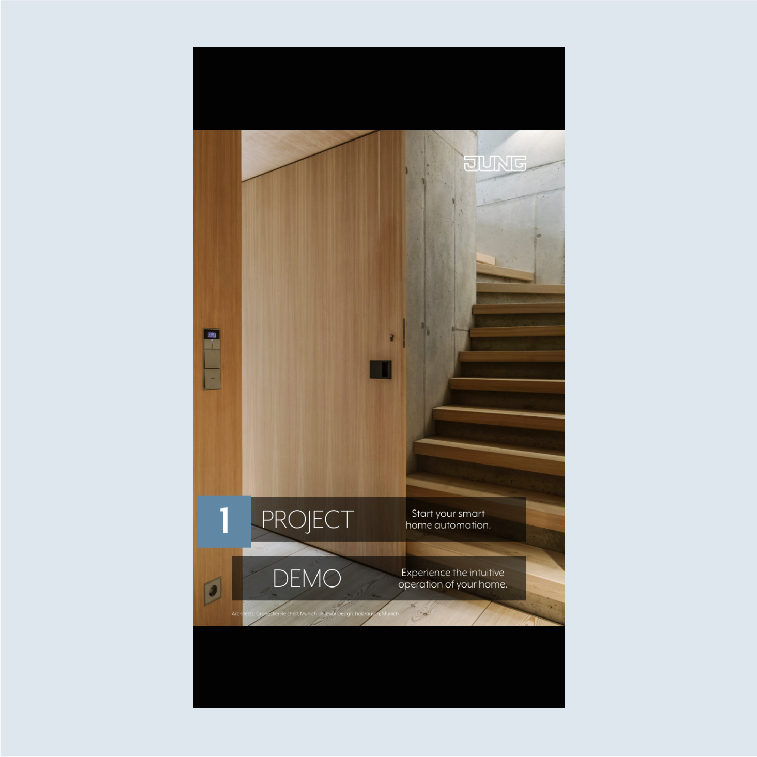
- Open the JUNG Visu Pro app and tap on
PROJECT1.
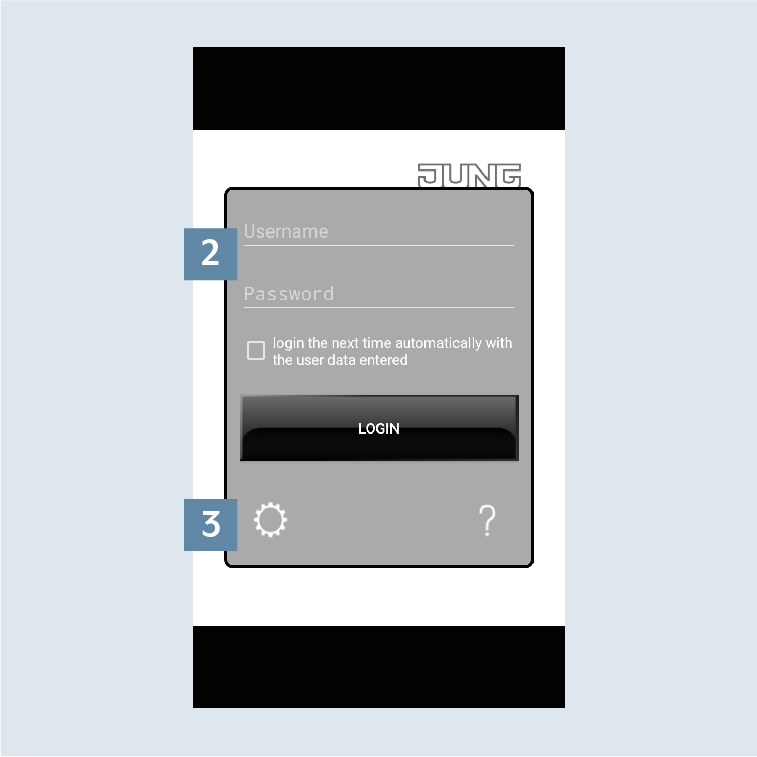
- Enter your local
user data (Username and Password)2 for access to the system. - Tap on the
gear3 to reach the app settings.
- Then tap on
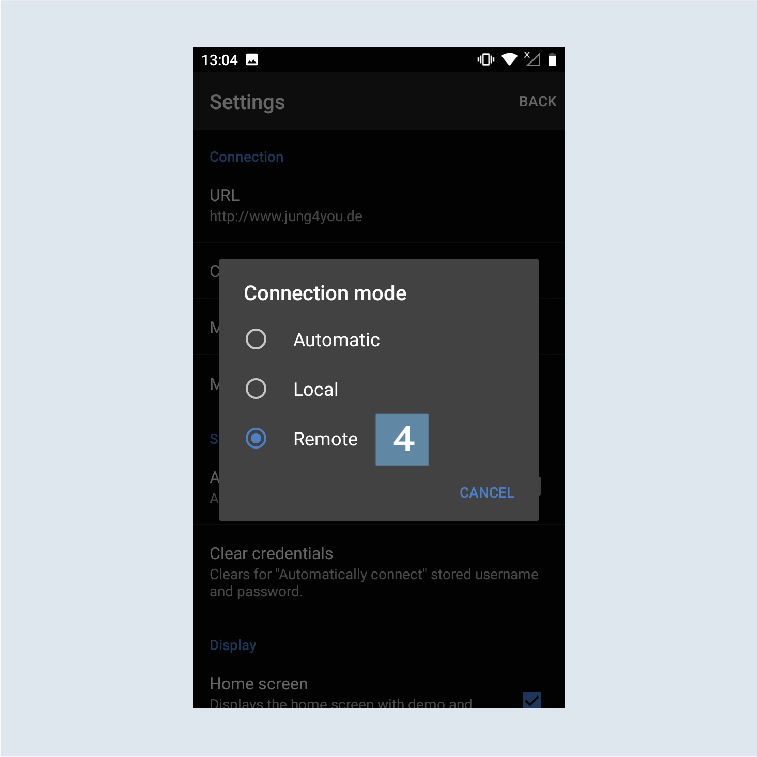
Connection modein the Settings and change the Connection mode toRemote. The connection to JUNG Visu Pro is now made with MyJUNG remote access as soon as you close the app settings. - Change the connection mode to
Remote4. The connection to JUNG Visu Pro is now made with MyJUNG remote access as soon as you have entered your MyJUNG E-Mail Address and the MyJUNG E-Mail Password. - If you would like the connection to be made automatically locally or remotely dependent on location, select
Automatic.
For this, also enter the IP address including port asURL(e.g.: http://192.168.1.200:8083).